


How to Datalog with Your SCT/Bully Dog Device
Important Requirements:
- A Windows-based laptop running Windows 8 or newer.
- SCT/Bully Dog device (X3, X4, LiveWire, iTSX, or BDX).
- USB cable (device to PC, included with applicable tuners).
- OBD-II cable (device to vehicle, included with applicable tuners).
- SCT LiveLink Gen-II software
Please Note: For any gas supercharged/turbocharged vehicles, do NOT perform a full pedal(WOT) pull or run until instructed by your calibrator.
Step 1: Install and Launch Software
- Download and install the SCT LiveLink Gen-II software.
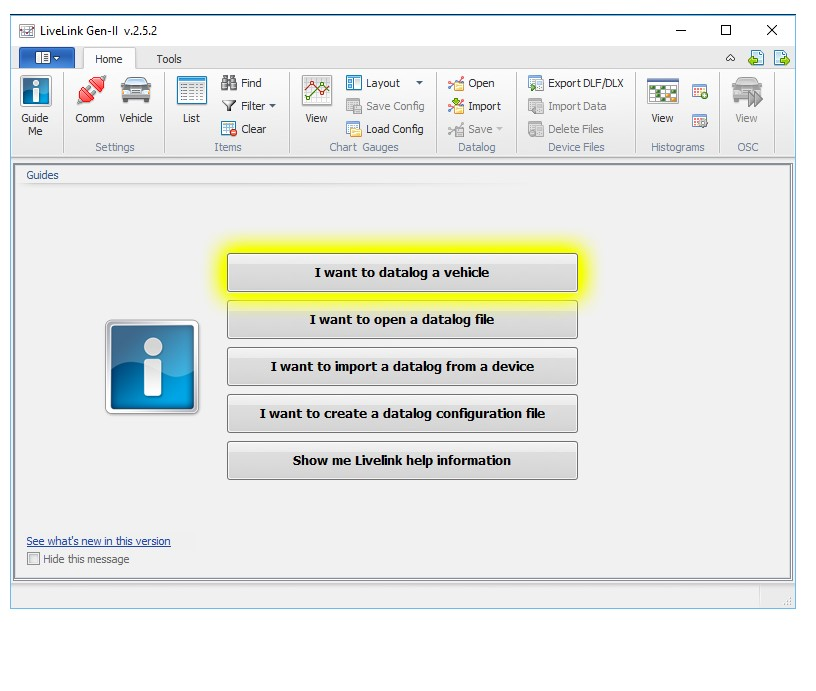
- Open LiveLink and select “I want to datalog a vehicle.”
Step 2: Connect the Device
- Plug the USB cable from a free USB port on your PC to the device’s USB port. Click “Next.”
- Locate your vehicle’s OBD-II port (typically under the dashboard near the steering wheel) and connect the device’s OBD-II connector. Click “Next.”
- Start the engine. Click “Next.”
- Check communications: Click the “Check Communication” button. Wait for the device and vehicle’s processor to be detected (question marks will turn into numbers). If no detection occurs, unplug and reconnect all cables, then try again.
- Once communication is established, select “Vehicle Info.”
- On the Vehicle Information screen, select “Validate All Items,” then “Select Items.”
Step 3: Select PIDs and DMRs
Select the requested PIDs (under the PID section) and DMRs (under the DMR section) for your vehicle. Selecting non-PID/DMR items will result in poor-quality datalogs.
Common PIDs
- Battery Voltage
- Boost (In PSI) (if applicable)
- Engine Coolant Temperature
- Gear Commanded
- Intake Temp
- Knock
- Lambse Bank 1
- Lambse Bank 2
- Load (As A Fraction)
- Long Term Fuel Trim Bank 1
- Long Term Fuel Trim Bank 2
- Measured AF Bank 1
- Measured AF Bank 2
- MPH-Vehicle Speed
- RPM
- Short Term Fuel Trim Bank 1
- Short Term Fuel Trim Bank 2
- Spark Advance 2
- Throttle Position Actual
- Trans Temp TOT
Standard DMRs (All Vehicles)
- Air Flow # Per Min
- Air Limit Source
- ECT Manifold Vacuum
- Effective Throttle Area
- Fuel Source
- Spark Source
- Torque Source
Additional calculated PID's for Ford EcoBoost Vehicles
- 2011-2014 EcoBoost:
- Canister Pressure inHg
- Estimated Fraction Of Turbo Air Mass
- 2015+ EcoBoost:
- HDFX Mode
- WGDC P
- WGDC X
- WGDC Y
Once selections are complete, click “Configure Datalog.”
Step 4: Save and Start the Datalog
- Save and name your datalog file. Include a description and the tune name.
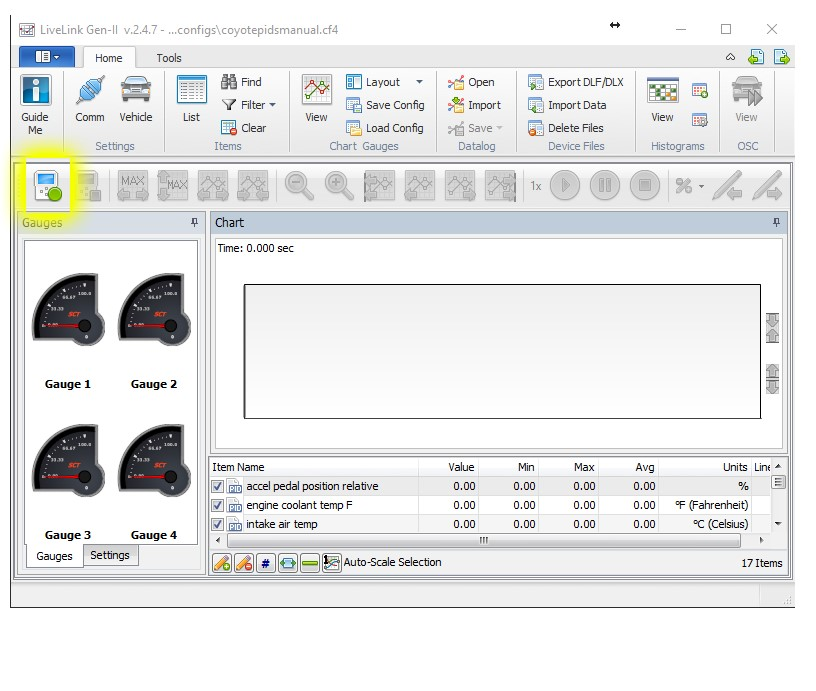
- The screen will display the datalog layout.
- Start the vehicle (if not already running).
- Click the device icon in the top-left corner (with the green dot) to begin logging. Data will start moving across the graph.
- Perform the required test (see “Test Types” below).
- To stop logging, click the device icon (now with a red dot).
Step 5: Save and Submit the Log
- Click the “Save” button in the toolbar (under the Data Log tab), then select “Save All.”
- Label the file with the same name used earlier.
- Email the saved log to sales@idspeedshop.com for review.
Datalog Test Types
Idle log. – get vehicle warm and log for 1 to 2 min.
RPM log. – get vehicle warm and slowly rev vehicle from idle to 3000 rpm. Stopping at 500 rpm
intervals. 1500rpm, 2000rpm, 2500rpm pausing for 10-15 seconds.
Driving log. – get vehicle warm. This is a part throttle driving log, NO WOT. Vary speed, throttle
position and acceleration rate from a stop.
WOT log. – get vehicle warm and in a safe environment to do a WOT pull in 2 nd or 3rd gear. Use
the lowest gear you can but not spinning tires.
Software Download Links
- SCT Device Updater: Use this to update firmware, tune revisions, or load custom tunes (Windows Vista/7/8/10 supported).
- LiveLink Software Overview: This tool views, datalogs, records, and plays back PCM data on a laptop.
Configuration file for 6.0L Diesel: